Introduction
If you’ve ever opened Gmail and found an important message sitting in spam gmail , you know the specific kind of annoyance it causes. It doesn’t feel like a big technical problem at first. It feels random. A bill, a client reply, a reset link, a school notice — all of it can end up in the wrong place, and the weird part is that Gmail usually isn’t being careless. It’s making a guess.
That guess is based on signals, not feelings. So when a sender looks unfamiliar, a message pattern seems off, or Gmail hasn’t built much trust yet, the inbox can get a little overprotective. The good news is that the fixes are usually simple once you know what Gmail is reacting to.
Quick Highlights
- Spam filters guess, and sometimes they guess wrong.
- “Not Spam” teaches Gmail faster than you’d think.
- Contacts can quietly improve future delivery.
- Filters help most when the same sender keeps getting missed.
Why Do Important Emails End Up in Spam?
Gmail is trying to protect you from junk, phishing, and random blasts you never asked for. That’s the whole point of spam gmail filtering. But the system doesn’t always know the difference between a true problem and a harmless message that just happens to look a little suspicious.
Usually, the issue starts with trust. If a sender is new to your account, sends in a way Gmail doesn’t recognize, or has low reputation signals attached to it, the message can get pushed toward spam. Sometimes it’s the content. Sometimes it’s the sender’s domain. Sometimes it’s just Gmail being cautious because it has not seen enough history to feel confident.
And honestly, that’s why this problem feels so frustrating. The email itself may be perfectly legitimate. But Gmail doesn’t see “important” the way you do. It sees patterns, and patterns can be misleading.
That’s also why one-off mistakes happen even with real companies, schools, or service providers. If enough warning signs stack up, the message gets treated like it’s risky. Not because it is risky, but because Gmail would rather over-block than under-block.
The First Step: Removing Emails from the Spam Folder
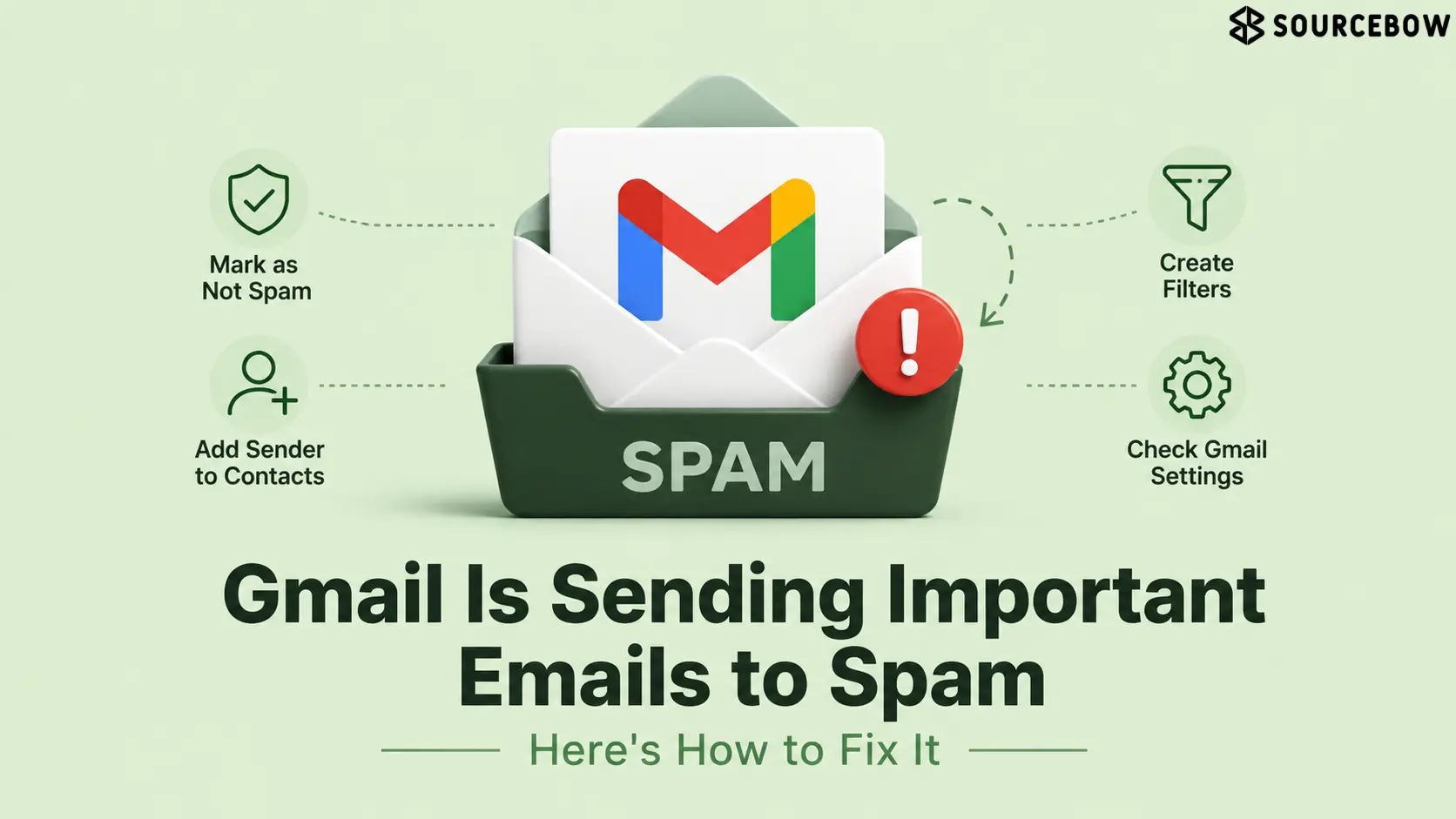
The simplest fix is also the most overlooked one: mark the message as Not Spam. It sounds almost too easy, but it matters because you’re giving Gmail direct feedback. You’re basically saying, “No, this message is fine. Stop sending it here.”
That signal can help with future emails from the same sender, especially if Gmail was only unsure in the first place. It’s not magic, but it’s one of the fastest ways to retrain the filter.
- Desktop: open Spam and click “Not Spam”
- Mobile: tap “Report not spam”
There’s a small but useful detail here: if you keep rescuing messages from the same sender, Gmail starts to learn that your account doesn’t want them hidden. So even though it feels like a one-time cleanup step, it can change how future mail is handled too.
If the email was especially important, it’s worth checking whether other messages from that sender were also filtered. Sometimes you’ll find a whole thread in spam, not just one stray note. Pulling the thread back into the inbox helps Gmail see the relationship more clearly.
Save Important Email Addresses to Your Contacts
Adding a sender to your contacts is one of those low-effort fixes that tends to help more than people expect. Gmail generally treats saved contacts as more familiar, and familiar usually means safer.
Think of it like a receptionist getting to know a regular visitor. The first time someone shows up, there’s caution. After that, the process gets smoother. Saving the address in Google Contacts can create that same kind of quiet trust signal.
This doesn’t guarantee every message will land perfectly forever, but it often improves the odds. If an important sender keeps ending up in spam, contact-saving is a smart step because it works in the background. You set it once, and it keeps helping without you having to remember anything.
It’s especially helpful for people like freelancers, parents, students, or anyone who gets messages from a small set of recurring senders. Once Gmail sees that address as part of your normal communication pattern, it’s less likely to get suspicious.
Gmail Filters Can Provide a Permanent Solution
When the same sender keeps getting misread, filters are where the fix becomes more intentional. Instead of hoping Gmail figures it out on its own, you’re telling it exactly what to do. That’s a much cleaner solution when the problem keeps repeating.
A filter can be set so a sender never goes to spam again. In other words, you’re not just rescuing one message. You’re creating a rule. For recurring business emails, newsletter systems you actually want, or a school address that must stay visible, that can be the difference between constant annoyance and total peace.
This is where the whole thing stops feeling like a workaround and starts feeling like control. Gmail can’t improvise forever, and a filter tells it to stop guessing.
There’s also a practical side to this: if the same email keeps getting buried despite being marked as safe, filtering is usually the most direct fix available. It’s especially useful when Gmail has a history of sending that sender to spam more than once.
What Should Mobile Users Do?
Mobile users can still do the important part of the job. You can rescue messages from spam, and you can save sender details to your contacts. That alone may solve the issue for many people.
The one catch is that filters are still a desktop-first task. So if you’re on your phone, you can get the message back where it belongs and teach Gmail a little, but setting a permanent rule usually means switching to a computer later.
That’s mildly annoying, sure. But it doesn’t mean mobile users are stuck. It just means the process is split: quick rescue now, stronger setup later if the sender keeps disappearing into spam.
FAQ
These are the questions people usually ask once the initial frustration fades and they want the problem to actually stop happening.
Q: Why does Gmail send important emails to spam?
It usually happens when the sender looks unfamiliar, the message was previously flagged, or Gmail hasn’t built enough trust around it. In other words, the filter is reacting to risk signals, not the importance of the email itself.
Q: Does marking an email as “Not Spam” help?
Yes, it tells Gmail the message is safe and can reduce the chance of future emails from that sender going to spam. If the sender keeps showing up in the wrong folder, this is one of the best first moves.
Q: Can saving a sender in contacts help?
Yes, Gmail tends to treat saved contacts as more trustworthy, which can push their emails back into the inbox. It’s a simple step, but it often helps more than people expect.
Q: Can filters stop this permanently?
For recurring senders, yes, a filter set to “Never send it to Spam” is the most direct fix. If the same address keeps getting caught, this is usually the closest thing to a lasting solution.
Conclusion
The real trick isn’t fighting Gmail every time it gets confused. It’s teaching it which senders matter. Once you mark the message, save the address, or set a filter where needed, the spam folder starts feeling a lot less random.
That’s the practical reality of spam gmail issues: the fix is usually smaller than the frustration makes it feel. A few simple signals can reshape what lands in your inbox, and after that, the whole thing gets easier to live with. If you’ve been missing important mail, start with the fastest correction and work outward from there. Chances are, that’s all Gmail needed.