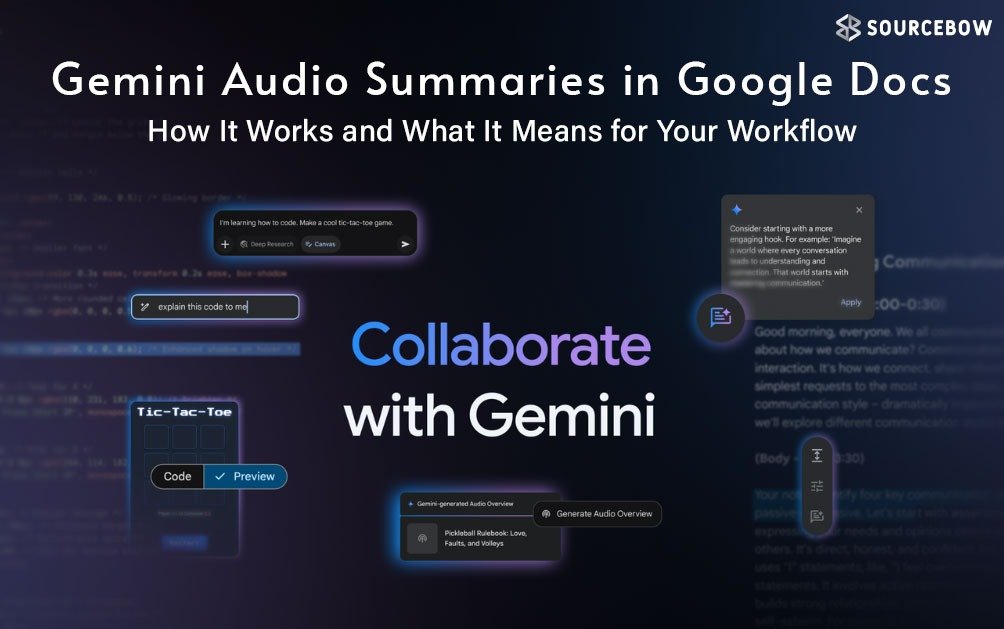
Imagine having a quick, humanlike briefing of a long document while you juggle other tasks. That’s the promise behind Gemini audio summaries in Google Docs. Powered by Google’s Gemini AI, this feature turns dense reports, meeting notes, and proposals into a brief, natural sounding audio you can listen to on the go. It’s not just a gimmick; it’s a practical tool designed for busy people who want to stay informed without sitting still with a screen. This article explains Audio Summaries; what they are, how they work and how you can use them in your daily work and study.
What are Audio Summaries (and why should you care)?
Audio Summaries are an AI tool built into Google Docs which provides audio summaries of the content of multiple tabs within a document. In essence, the audio summary is akin to an audio executive summary; it serves as a quick way to hear what the document is about (summary), find out what the key findings are (finding), and finally hear the major points of the document (point) without having to go through every single page looking for these items. This will save you time and assist you in interacting with other people, or getting caught up while multitasking, and if you are looking for a quick summary before a meeting.
Audio Summaries are not simply a voice reading the text that is found in a document; rather they have been specifically designed to be delivered in a natural and human-like manner. The narration is meant to feel as if a real person is guiding you through the material. It’s part of Google’s broader Workspace updates that are building smarter, more time-saving tools into everyday workflows.
How Gemini audio summaries work in Google Docs
Here’s the core idea. Gemini analyzes the document, extracts the most important bits, and then generates a short verbal synopsis. The summary will take about a few minutes and will be delivered in a conversational way to keep you engaged and informed.
There are several practical controls you can use to customize the experience:
- Voice options: You can select a voice, such as a narrator, persuader, or coach, that fits the emotion you want.
- Playback controls: You can control the rate of the playback by using a speed adjustment; you can also use a seeker to forward or backward and pause when you need to refer back to the original text.
- Scope: This feature only provides information based on the document; it does not provide external information.
On the web, you’ll find the audio player under the Tools menu with an option labeled Listen to document summary. It works in concert with the existing audio features in Docs and complements a user’s reading-and-listening workflow. For organizations, it’s noted that there aren’t admin controls specifically for Audio Summaries in this stage, which means availability is tied to individual subscription status rather than centralized enterprise settings.
What you can do with Audio Summaries
Audio Summaries aren’t just a novelty. There are numerous ways to utilize summarisation in daily working and studying. Examples include:
- Getting caught up on Meeting Notes or reviewing long reports as you commute to or from work and while performing other tasks.
- Utilize a different voice than your own (e.g., coach, narrator, user, etc.) to help you follow/document /edit along with your work, increasing your overall understanding and identifying potential errors.
- Use the summarisation to switch between tabs/documents without losing your spot; instead, have the summarisation as a written overview/guide for where to continue from.
Voice | Style and intended use
- Narrator: Neutral and straightforward summarisation of basic information
- Persuader: Energetic and concise summary/pitched to announce the importance of taking some sort of action (i.e., a sales pitch)
- Coach: Providing motivation to continue taking “next steps” and carry out the action
- Storyteller: More narrative in nature and telling a “story” to relate to longer documents.
While using the summarisation to communicate your final product to others will be based on what you are summarising, you to send another document (or piece of information) to someone that will reflect the overall construction and framework of the document.
Availability and getting started
Google has started rolling out Audio Summaries to several paid Workspace tiers, with the rollout happening over the coming weeks. Availability includes:
- Business Standard and Plus
- Enterprise Standard and Plus
- Google AI Ultra for Business add-on
- Google AI Pro for Education add-on
- Google AI Pro and Ultra subscriptions
To try it, open a document in Google Docs on the web, head to the Tools menu, and select Listen to document summary. If available on the account, you’ll see the audio player with the ability to switch voices, adjust speed, and scrub through the summary timeline. It’s designed to be a lightweight enhancement, not a replacement for reading long documents but a complement that can save time and keep momentum going.
Audio Summaries offer many benefits if you follow these simple guidelines to get the most out of them:
- Find an appropriate voice. If it’s a business meeting, you would want someone with a steady delivery, but if it’s a brainstorming session, you want a motivational coach or ballsy voice.
- If you are just skimming and not reading in depth, you can watch audiobooks at faster speeds for less actual time while still grasping everything.
- Use audiobooks as guides when you read them, using the audio to accomplish an overview at a high level and then the text to complete detail that may need to be retrieved later.
- After hearing something important, review that same section in the text quickly to ensure that the information you received was correct and that you did not forget any critical detail.
- Be cautious of the nature of any sensitive information when using audio features. If you have any documents with circumspect data, use audio features in a reasonable manner and in accordance with company rules, regulations and guidelines.
- While Audio Summaries provide large values, some additional considerations of the feature include the fact that the audio summary essentially provides a synopsis of the underlying text in an artificial manner. However there will be no modifications made to the information contained within the source document. The Audio Summaries feature is accessible only through particular Google Workspace accounts and will therefore vary in use from one subscription to another and according to the deployment timeline. It is always advisable to use Audio Summaries
from Gemini as a starting point and recheck the source document for accuracy and completeness, especially in the fields of law, finance, or compliance.
Final Thoughts: a new approach to how to stay current
Gemini Audio Summaries in Google Docs isn’t designed to replace actual written materials, but instead offers an enhanced way to engage with long-form documents. Short, natural sounding Audio Summaries that are suitable for students, professionals and teams will allow them to efficiently juggle many projects and keep themselves up to date. This merely illustrates that AI should aid in accomplishing daily tasks rather than simply being technological gimmicks in Google Apps.
So, what kinds of documents will be most interesting for you to listen to? Would you prefer a Quarterly Report, Proposal Document or long Meeting Notes? Give Audio Summaries a try and see how a brief spoken snapshot might reshape the way you work and learn.